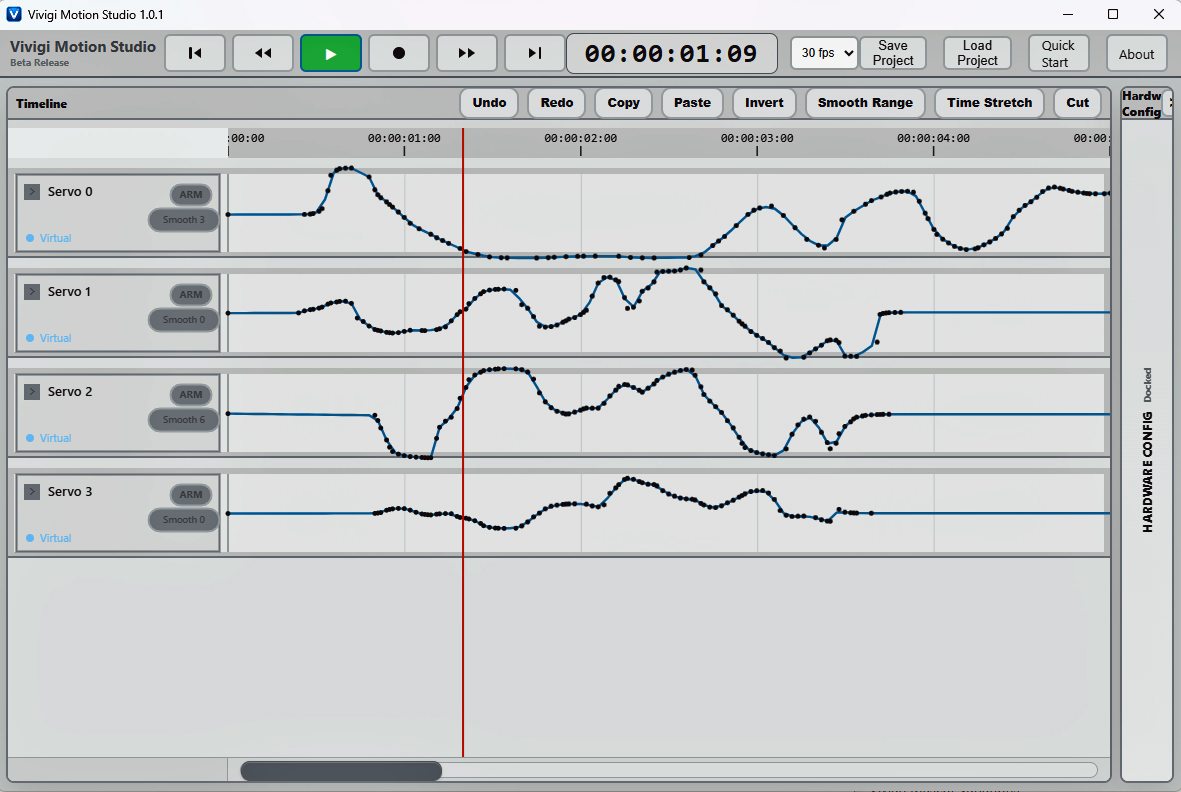
Getting started with Vivigi Motion Studio.
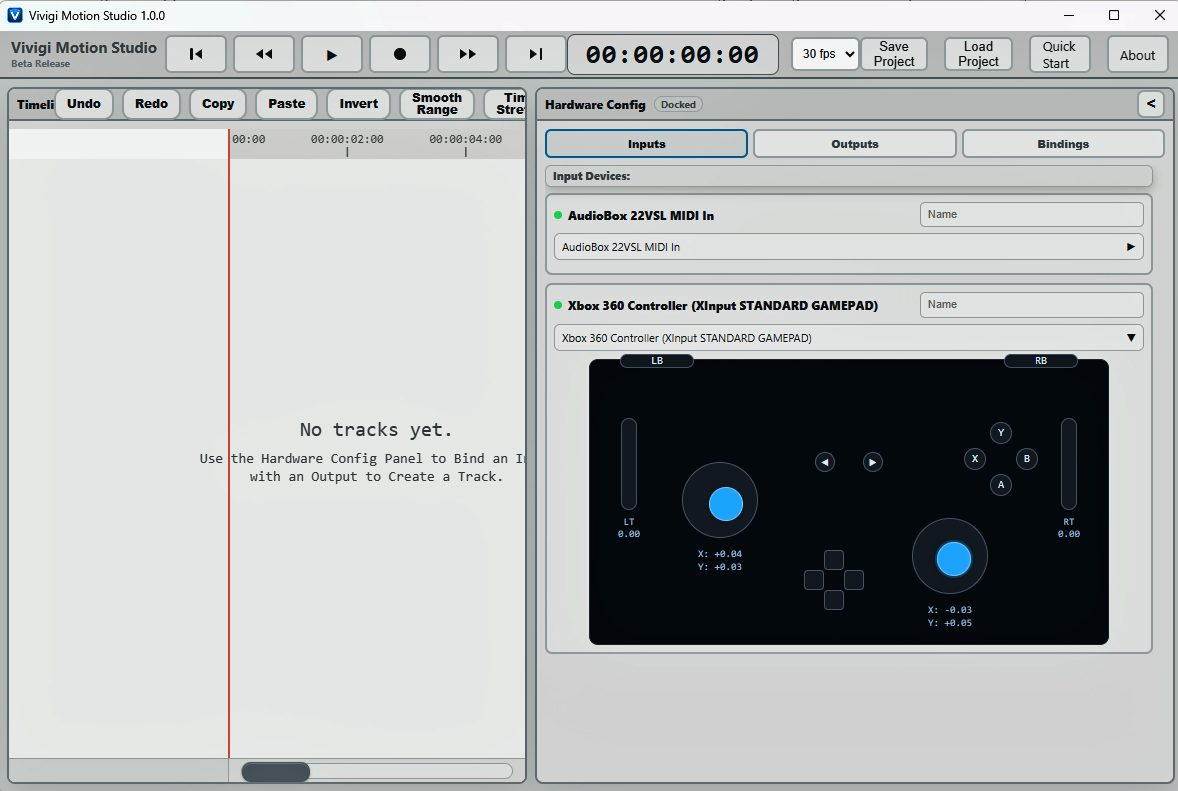
1. Connect an Input Device
Connect a supported gamepad, RC transmitter, or MIDI controller to your system before launching a motion workflow.
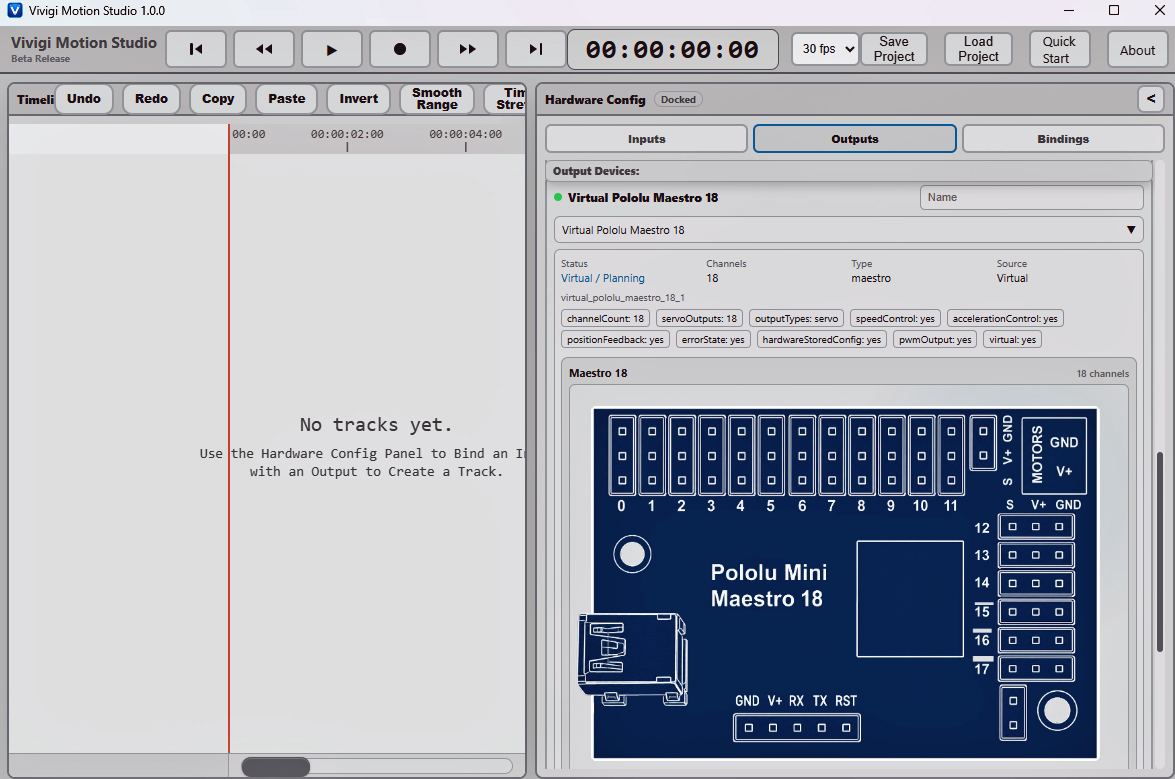
2. Add an Output Device
Add virtual or physical output devices such as Pololu Maestro controllers or Servo 2040 boards to your project.
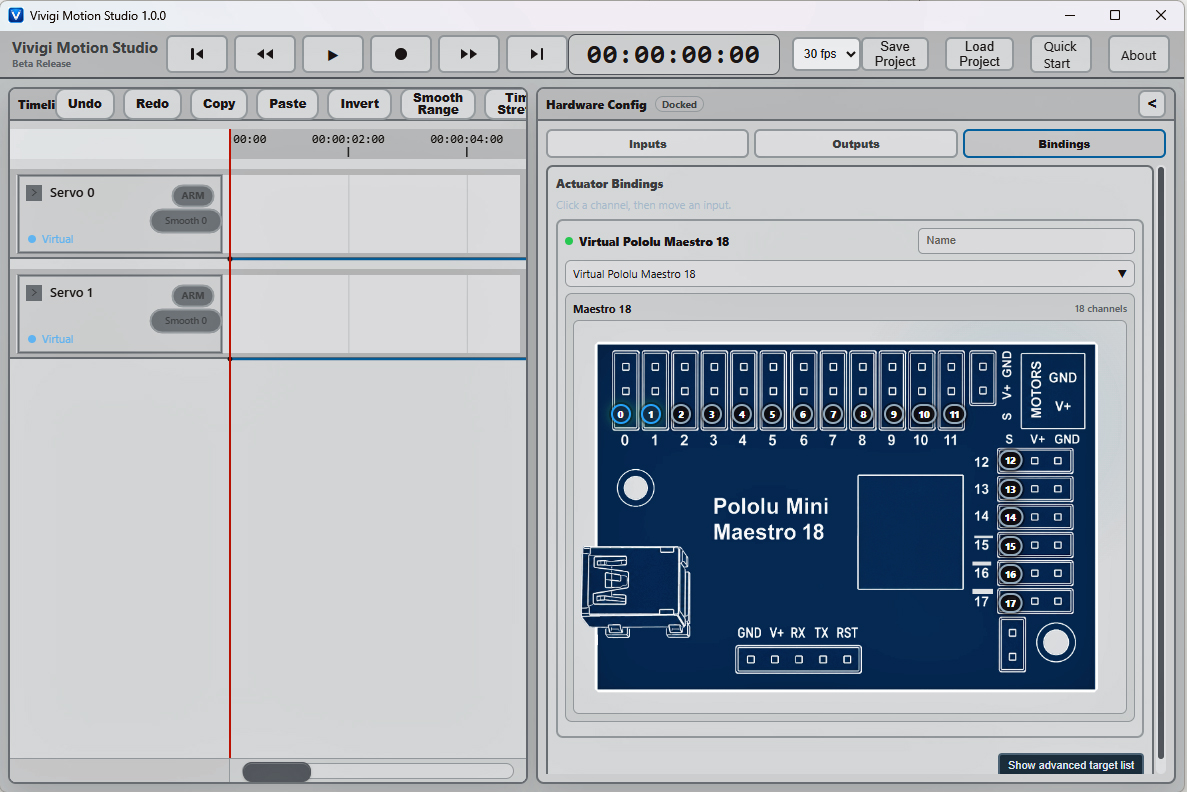
3. Create Bindings
Bind controller inputs to motion channels, servos, or animation parameters to create interactive motion control workflows.
4. Record Motion
Use live input devices to record physical motion directly into the timeline for playback and editing.
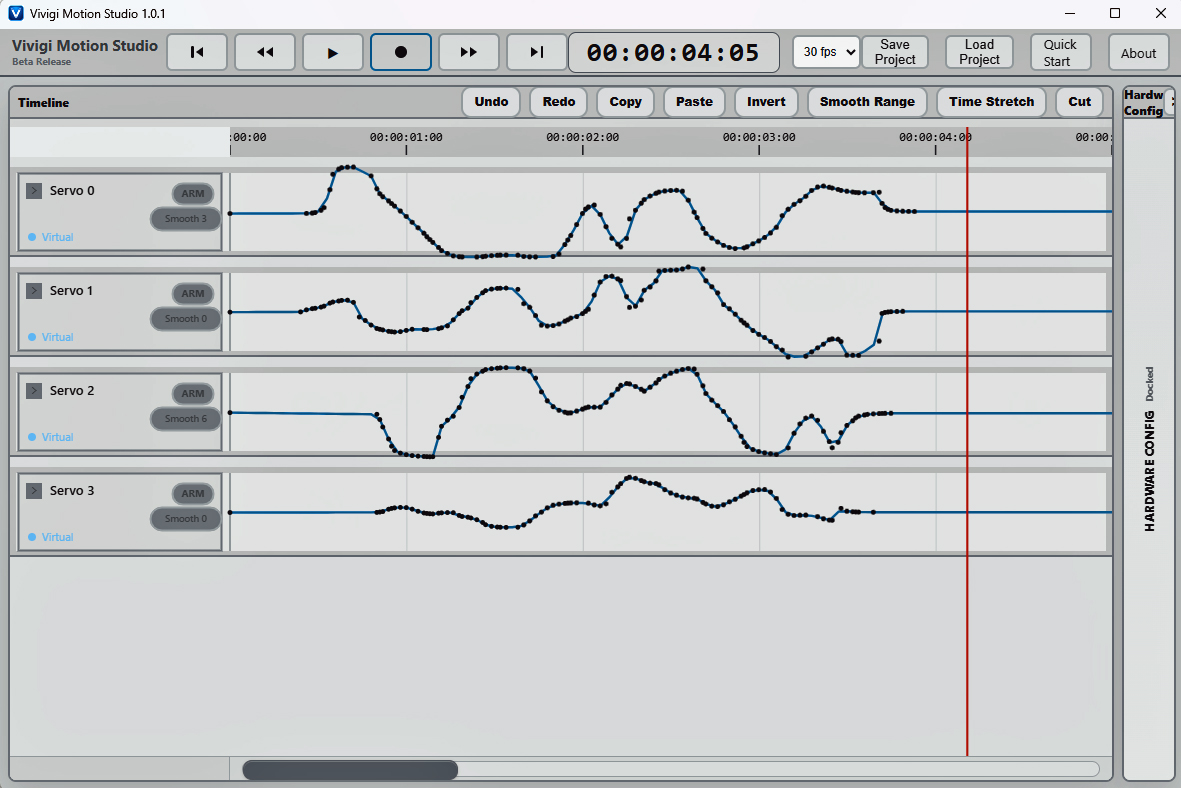
5. Edit and Refine Motion
Adjust timing, playback, smoothing, and motion behavior directly within the timeline editor to refine performances and animation sequences.
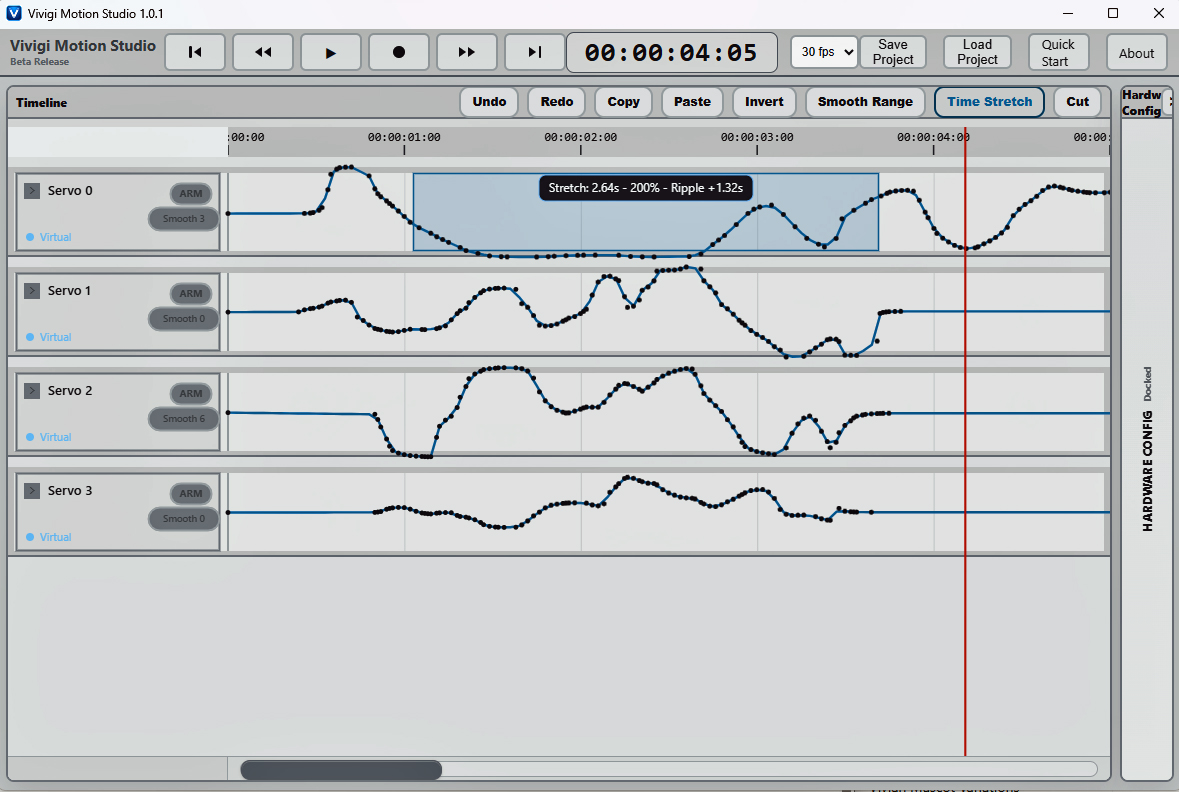
6. Playback Motion
Play motion back through virtual or connected physical hardware devices for testing, performance, puppetry, or animation workflows.